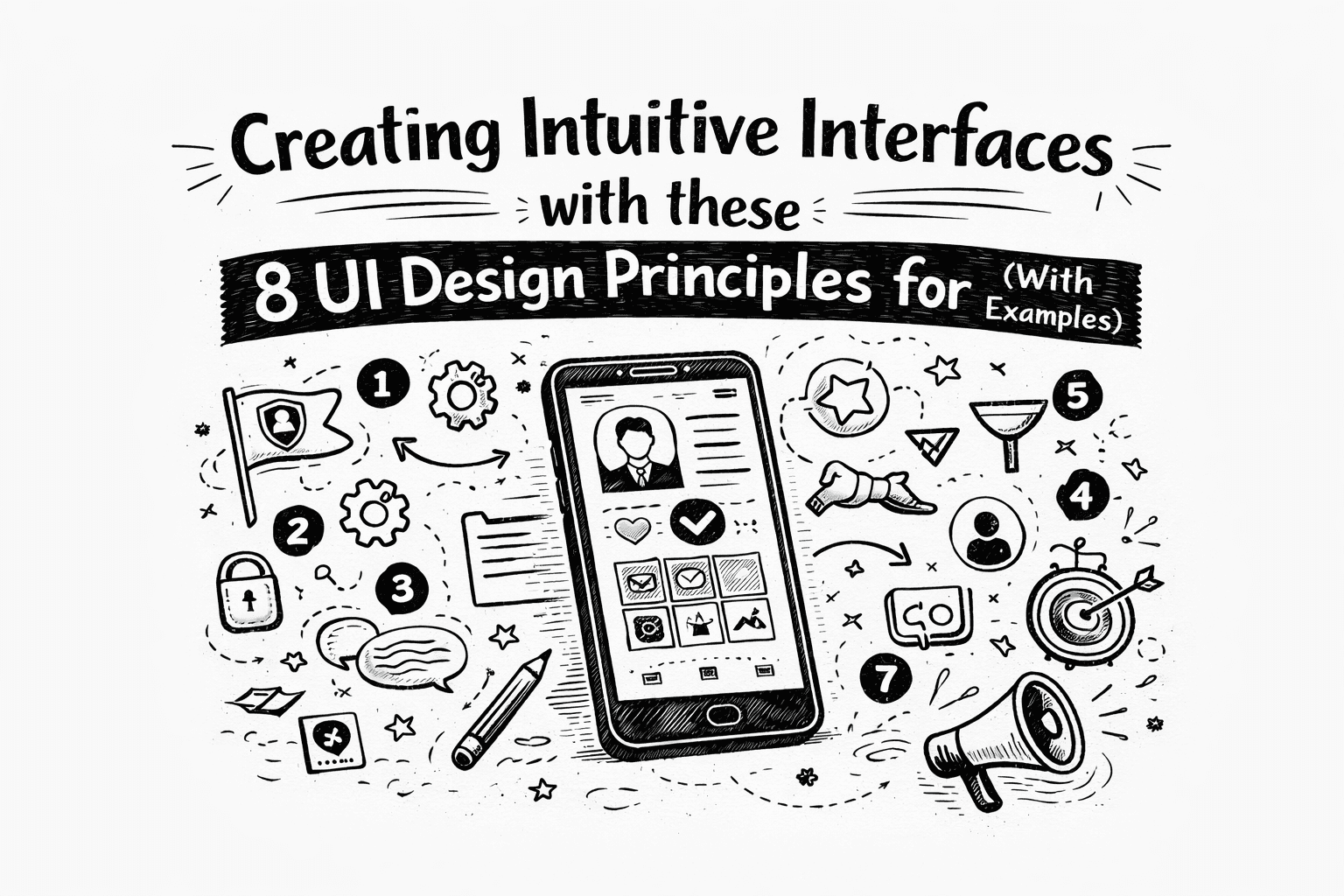
Creating Intuitive Interfaces with these 8 UI Design Principles for (With Examples)
By: Vimal Bhatt
In today’s digital landscape, users form judgements in a matter of seconds. They crave interfaces that are intuitive, that feel natural, easy to use, and require little to no learning curve. They do not need flashy features, but rather, an experience that feels effortless.
A well-designed User Interface(UI) anticipates user needs, making even complex tasks feel simple to navigate. It’s the difference between a tool that feels like an extension of yourself, something that you can just naturally operate, and not one that you have to constantly fight against, or struggle to figure out.
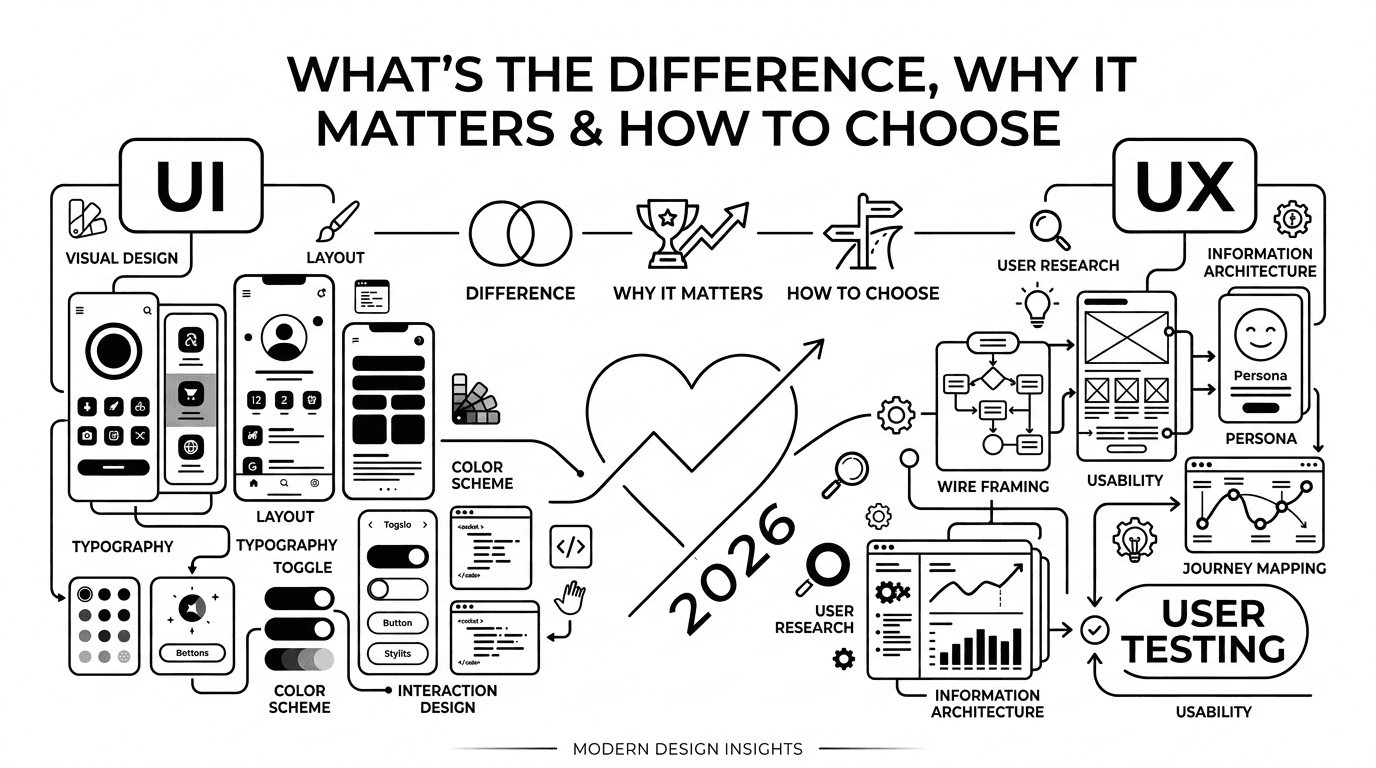
In this guide, we’ll be exploring some essential principles that form the foundation of an intuitive interface. Whether you're a product designer, startup founder, or just exploring UX/UI career paths, mastering these UI design principles will help you create smoother, more intuitive interfaces.
How Intuitive UI Design Boosts Conversions and Enhances User Satisfaction
In the digital space, user frustration just leads to abandoned shopping carts, low engagement, and a brand reputation that weakens very quickly. When users cannot easily navigate a site, they leave.
Research by Nielsen Norman Group shows that users have very low tolerance for delays and usability issues, which means, when interfaces are confusing or difficult to use, users are likely to abandon the task or leave the site altogether (Nielsen Norman Group).
On the contrary, a user-friendly and easy-to-navigate UI fosters trust, improves user satisfaction, and enhances the overall user experience. It encourages users to stay longer, explore more, and ultimately, become loyal customers.
The main difference between a user who struggles navigating, and eventually leaves, and one who accomplishes their goal with ease, developing a positive impression on your brand, is good design. This positive experience transforms one-time visitors into long-term advocates.
Let’s look at a real-world example of intuitive vs confusing UI design, so you can spot the difference in practice.
The Confusing Interface: The “Confirm Booking” Button appears pale gray, and appears as though it isn’t clickable. The form fields aren’t labelled properly, and error messages are frustratingly vague, simply stating “Invalid Input” without specifying which field is creating the error. The user is much more likely to feel frustrated, unable to figure out which information is incorrect, and just abandon the process entirely.
The Intuitive Interface: The “Book Your Appointment” button stands out clearly from among the other buttons, making it an obvious target for clicking. The form fields have clear labels and placeholder text. If the user forgets to fill a required field, it guides the user to the problematic field, or highlights a message, such as , “Please provide your email address.” The process feels intuitive, swift, and respectful of the user’s time. Especially for first time users, it can feel incredibly helpful.
The first example creates a communication barrier and erodes trust. The second creates a seamless experience that reinforces brand reliability. The core goal of intuitive UI is to systematically identify and remove these points of friction.
Core Principles for Creating Intuitive Interfaces
Building an intuitive interface is a deliberate process that needs to take human psychology into consideration. Listed below are some key principles you can rely on to create digital products that users find easy, efficient, and enjoyable to navigate.
1. Clarity:
Make Elements Instantly Recognizable and Easy to Use.
The foundation of any intuitive user interface is instant recognition and ease of use. Above all else, every element in an interface must communicate its purpose instantly. Users should never have to guess what a button does, where a link will take them, or what information a form field requires. Ambiguity is the enemy of intuition.
In practice, this can be achieved by using icons alongside text labels, choosing clean and highly readable fonts, and allowing for plenty of white space between elements to prevent visual clutter. ”For instance, a button that explicitly says, “Download Your free E-book” is always more clear and compelling than one that just says, “Access Your E-book” or “Claim Your E-book”.
2. Consistency:
Build Trust and Reduce Cognitive Load
Maintaining the same visual patterns and behaviours throughout your interface is fundamental. When buttons, colours, terminology, and navigation structures work the same way on every page, users can transfer their learning from one part of your site to another. This consistency reduces the mental effort required to interact with your product, making it feel familiar and predictable.
In Practice, you should develop a simple style guide that documents your primary and secondary button styles, colour palette, and typography scale. Ensure that your main navigation menu stays in the same location on every page. If a word is underlined, and is, say, blue on one page, it should be the same on all others to signify a link.
3. Clear Visual Hierarchy:
A well-defined visual hierarchy uses visual cues like size, colour, contrast, and spacing to signal importance and relationships between elements. It creates a natural path for the eye to follow, helping users scan a page and instantly understand what is most important, what is a heading, and what is a supporting element, without getting overwhelmed by information.
In Practice: Your main headline should be the largest and boldest text on the page. Group related items closely together(using proximity) to show that they are connected, such as a form label, and its corresponding input field. Your primary call-to-action button should be the most visually prominent element through the use of a contrasting colour.
4. Feedbacks:
An intuitive interface feels responsive and alive. It should acknowledge every user action with immediate and clear feedback. This assures users that their interaction has been received and is being processed. Without feedback, users are left wondering if they clicked correctly or if the system has frozen.
When designing, you could make the buttons have a distinct visual state for hover, and when they’re pressed. When a form is getting submitted, a loading spinner or progress bar could appear on the screen. After an action is completed, a confirmation message(e.g., “Your settings have been saved”) provides closure. Error messages should be specific, polite, and ideally, also suggest a solution.
5. Make Design reflect Function:
This principle, rooted in Don Norman’s work, states that an object’s design should suggest its function. In UI terms, a button should look pressable, a slider should look draggable, and a text field should look typeable. These visual cues, which are called signifiers, make the functionality of an element obvious without the need for instructions.
In Practice, use subtle shadows, gradients, or contrasting colours to make buttons appear raised and tappable. Use recognizable, standard icons like, a floppy disk for save, a magnifying glass for search, or a trash can for delete. Avoid being overly creative with fundamental icons, as this breaks established conventions.
6. Use Strategic Minimalism:
Strategic minimalism is about:
Removing distractions
Focusing on essential actions
Reducing decision fatigue
Maximizing whitespace
This approach reduces cognitive load on the user, and also prevents “decision fatigue”, where too many simultaneous choices lead to user paralysis and inaction.
When designing, regularly audit your screens and ask,”Is this element necessary for the user to complete their goal?” If not, consider removing it or consolidating it. User progressive disclosure, showing users the basic options first, and revealing more advanced or complex options only when they actively seek them out(say, through an “Advanced Settings” link).
For reference, take Youtube’s ‘stats for nerds’ option.
7. Give Users Control:
Users should feel empowered, not trapped, within an interface. A well-designed system provides users with a sense of agency by offering clear ways to reverse actions, cancel processes, and navigate freely. This is especially important for preventing anxiety around making irreversible mistakes.
The most classic example for this is an “Undo” option after deleting an email or file. Every modal popup or new screen must have a clearly visible “Close” or “Cancel” button. A persistent and logical navigation structure, including a “Back” button, allows users to explore without fear of getting lost.
8. Design for Accessibility:
An intuitive interface needs to be intuitive for all users, including those with visual, auditory, motor, or cognitive disabilities. Accessibility is not a separate feature that is optional. It is a fundamental aspect of thoughtful, inclusive design. By building with accessibility in mind, you not only comply with standards, but also create a better, more robust experience for every single user.
You can do this by ensuring that all text has a sufficient colour contrast ratio against its background to aid users with low vision. Provide descriptive alt text for all informative images. Structure your content with proper heading tags(H1, H2, etc) and ensure every interactive element can be accessed and used with a keyboard alone.
Common UI Design Mistakes That Make Interfaces Confusing:
Low Contrast Text: Light gray text on a white background may look sleek but significantly hinders readability for many users.
Inconsistent Styling: Variations in button styles or colors confuse users about what’s clickable and what’s important.
Hidden Navigation: Hiding key menu items behind a hamburger menu on desktop sites can lead to discoverability issues.
Overuse of Complex Animations: While subtle animations can guide your attention, excessive or slow animations distract users and slow down task completion.
Conclusion
Creating an intuitive user interface is the result of a thoughtful, user centered approach built on these 8 core principles. The goal is to make your user’s journey so smooth that the design itself becomes invisible, allowing them to focus on just their objective. This way, you can build digital experiences that feel less like using software and more like a natural, frictionless interaction.
Frequently Asked Questions (FAQ)
1. Question: What are the core principles of intuitive UI design? Answer: The core principles include clarity, consistency, visual hierarchy, feedback, affordance, minimalism, accessibility, and user control. These help create user interfaces that are easy to use and require no manual or explanation.
2. Question: How do I make my UI more intuitive? Answer: Focus on removing friction, use common design patterns, and test your interface with real users. Start with clarity, consistent navigation, readable typography, and clear calls to action.
3. Question: What is the difference between UI and UX? Answer: UI (User Interface) refers to how a digital product looks and behaves. UX (User Experience) includes the broader journey, like how easy, efficient, or pleasant it is to use that product.
Let’s build something
Amazing together!
© 2025 Vimal Bhatt. All rights reserved